A KVM switch helps you manage multiple computers with a single keyboard, monitor, and mouse, boosting your productivity. It streamlines your workspace by reducing clutter and enabling seamless switching without unplugging cables. With support for various connections like HDMI and USB, it simplifies your setup and accommodates high resolutions essential for tasks like gaming or video editing. Plus, it offers features like dual monitor support for enhanced multitasking. Explore more to uncover the benefits it can bring to your setup.
Key Takeaways
- A KVM switch allows control of multiple computers using a single keyboard, monitor, and mouse, simplifying workspace management.
- It reduces clutter by eliminating the need for multiple input devices, saving desk space.
- Seamless switching between computers is facilitated without the hassle of unplugging and replugging cables.
- Supports dual monitors and compatibility with various operating systems, enhancing multitasking capabilities.
- High-resolution support boosts visual quality, making it ideal for gaming and video editing applications.
Understanding KVM Switches
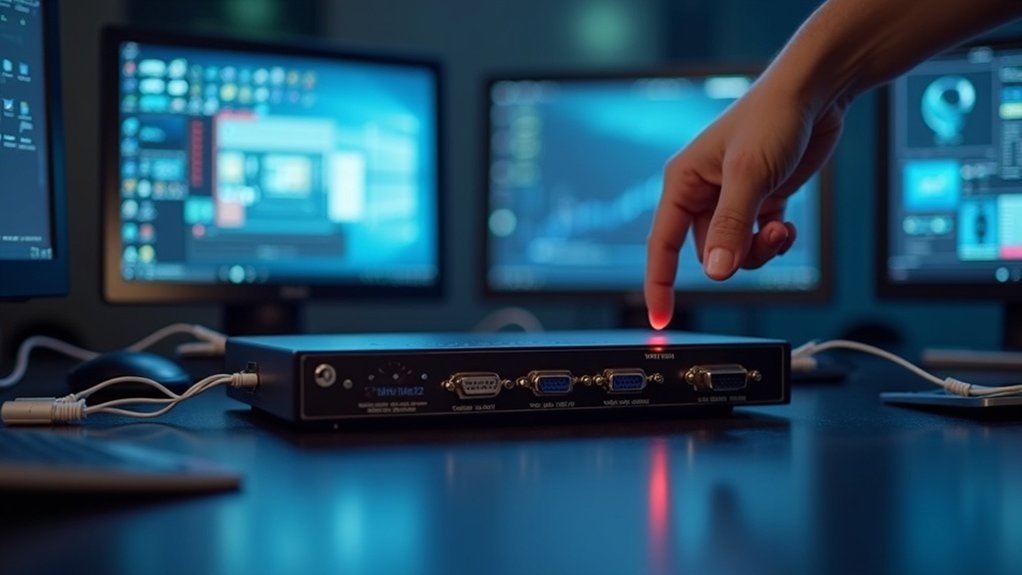
A KVM (Keyboard, Video, Mouse) switch is an essential tool for anyone managing multiple computers. It allows you to control multiple computers using a single keyboard, monitor, and mouse, greatly enhancing workspace management.
Utilizing signal emulation technology, a KVM switch guarantees seamless switching between computers without interrupting operations or performance. Most switches support various connection types like HDMI and USB, making them compatible with diverse USB peripherals.
They also handle high resolutions, catering to demanding applications such as gaming and video editing. By simplifying your setup, a KVM switch boosts efficiency, helping you focus on tasks without unnecessary distractions.
Benefits of Using a KVM Switch for Multiple Computers
Using a KVM switch transforms your workspace by enabling control of multiple computers through a single set of peripherals.
The benefits of using a KVM switch are significant: it streamlines workspace efficiency, reduces clutter, and saves desk space. You can switch between computers seamlessly, enhancing productivity without the hassle of unplugging and replugging cables.
Using a KVM switch enhances productivity by streamlining your workspace, reducing clutter, and allowing seamless computer switching.
Many KVM switches support dual monitor setups and are compatible with both Windows and Mac systems, allowing flexibility for diverse operating environments.
Additionally, you’ll save money on extra input devices, as one set effectively manages all your systems, making your workspace more organized and efficient.
How a KVM Switch Works
KVM switches enable you to efficiently manage multiple computers from a single set of peripherals, but understanding how they operate is key to maximizing their benefits. A KVM switch connects your mouse and keyboard to multiple computers, allowing you to control them from one central console. It employs signal emulation technology to guarantee seamless signal transmission without CPU interruptions. You can switch between different systems easily via buttons or hotkeys. Furthermore, these switches support various video resolutions and their port availability determines how many computers you can connect.
| Feature | Description |
|---|---|
| Control Method | Buttons, hotkeys, on-screen displays |
| Signal Technology | Signal emulation technology |
| Video Resolution Support | Multiple resolutions supported |
Key Features to Look for in a KVM Switch
When choosing a KVM switch, you’ll want to assess monitor support options to make certain it meets your multi-screen needs.
Additionally, consider the connection types available, as compatibility with HDMI, DisplayPort, and USB-C can greatly enhance your setup.
Don’t forget to check for USB peripheral compatibility, allowing seamless use of devices like keyboards and mice across different computers.
Monitor Support Options
Choosing the right monitor support options in a KVM switch is fundamental for maximizing your multitasking setup.
Look for a KVM switch that supports multiple monitors, with options for dual monitor setups to enhance your workflow. Confirm it maintains the desired video resolution, ideally 4K at 60Hz or higher, for peak visual quality.
Compatibility is essential, so check for HDMI ports and other video connections like DisplayPort or USB-C.
Advanced features like Picture-in-Picture (PiP) can help you manage multiple computers effectively, while a high refresh rate, such as 165Hz, is critical for an immersive gaming experience on multiple displays.
Connection Types Available
Understanding the connection types available in a KVM switch is vital for optimizing your setup. Here are key features to take into account:
- Video Output: Look for HDMI, DisplayPort, or VGA support to guarantee compatibility with your monitors.
- Resolutions: Select a KVM switch that supports up to 4K at 60Hz for sharp video quality.
- USB Ports: Confirm it has enough USB ports for connecting peripherals like keyboards and mice across multiple computers.
- Audio Support: Some models allow you to switch audio devices alongside video, enhancing your multimedia experience.
Choose wisely based on these connection types and the number of ports available.
USB Peripheral Compatibility
While evaluating KVM switches, USB peripheral compatibility is essential for enhancing your workspace efficiency. A switch that supports USB 3.0 or higher guarantees fast data transfer rates, making it perfect for high-bandwidth devices. Additionally, look for USB hub functionality to connect multiple devices like keyboards, mice, and printers. Hot-plugging support allows for seamless changes without powering down, and compatibility with both Windows and macOS guarantees you can share devices across multiple computers effortlessly.
| Feature | Importance | Benefit |
|---|---|---|
| USB 3.0 Support | Fast data transfer rates | Improved performance |
| USB Hub Functionality | Additional ports | Connect more devices |
| Hot-Plugging | Seamless changes | Easy device management |
| OS Compatibility | Windows and macOS | Broad peripheral support |
| Device Sharing | Enhance productivity | Efficient workspace setup |
Best KVM Switches for Multi-Computer Setups
When managing multiple computers, selecting the right KVM switch can greatly enhance your productivity and streamline your workspace.
Selecting the right KVM switch can significantly boost your productivity and optimize your workspace efficiency.
Here are some of the best KVM switches for multi-computer setups:
- iDock D23 – Supports triple monitors at 4K@144Hz/165Hz.
- 8KSW21DP-DM – Ideal for gamers with 4K@165Hz, VRR, and G-Sync.
- iDock C20 – Perfect for two laptops, offering dual monitors in a clamshell mode.
- iDock C10 – Delivers dual HDMI output at 4K@60Hz and charges via USB-C.
Choose the best KVM for your setup, ensuring compatibility with HDMI, USB-C, and your specific hardware needs.
Tips for Optimizing Your Workspace With a KVM Switch
To optimize your workspace with a KVM switch, consider the layout and organization of your peripherals. Using a single keyboard and monitor setup allows you to control multiple computers while saving desk space.
Position your KVM switch conveniently, enabling you to switch between computers effortlessly. To enhance productivity, integrate USB peripherals like webcams and microphones, ensuring a seamless user experience.
A dual or triple monitor setup can further streamline workflow, making multitasking more efficient. By reducing clutter and wear on device ports, a KVM switch not only organizes your workspace but also prolongs the lifespan of your equipment.
