
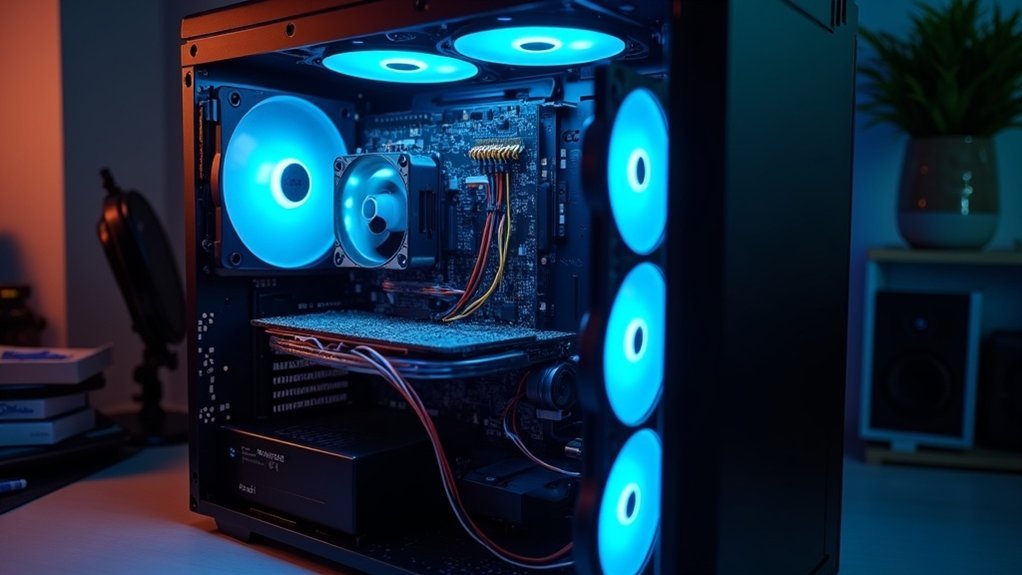
Periodic dusting extends your PC’s lifespan by preventing dust buildup that obstructs airflow and causes overheating. As dust settles on critical components, it reduces cooling efficiency, which can lead to thermal throttling and potential hardware failure. Regular cleaning keeps temperatures in check, protects your CPU and GPU, and enhances overall performance. By following a consistent dusting routine, you can greatly prolong your system’s life. Discover additional strategies to maintain your PC’s health effectively.
Key Takeaways
- Regular dusting prevents airflow obstruction, reducing the risk of overheating critical components like CPUs and GPUs.
- Clean systems experience less thermal throttling, maintaining optimal performance and efficiency.
- Dust buildup can cause frequent system freezes and unexpected shutdowns, indicating potential failures.
- A dust-free environment prolongs the effectiveness of cooling systems, enhancing overall PC reliability.
- Consistent maintenance saves costs on repairs and replacements, extending the lifespan of the entire system.
The Importance of Dusting for PC Health
While you may not realize it, regular dusting is essential for maintaining your PC’s health. Dust buildup obstructs ideal airflow, leading to overheating and potential hardware damage.
Critical PC components like CPUs and GPUs can fail within 4-5 years if neglected. By cleaning the interior and maintaining dust filters, you can enhance airflow efficiency, reducing the risk of thermal throttling during high-performance tasks.
A consistent dusting schedule, ideally every 3 to 6 months, serves as regular maintenance that helps extend the lifespan of your system. Ultimately, this simple task can prevent damage and guarantee reliable performance over time.
How Dust Accumulates and Affects Performance
As your PC operates, dust naturally enters through cooling fans and settles on critical components, gradually accumulating and hindering airflow.
This dust accumulation restricts your cooling system’s efficiency, causing high temperatures that can lead to thermal throttling. When components like CPUs and GPUs overheat, their performance diminishes, forcing fans to work harder, which increases noise and energy consumption while shortening their lifespan.
Dust accumulation hampers cooling efficiency, leading to overheating, reduced performance, and increased noise and energy consumption.
Implementing dust filters can help capture particulate matter before it infiltrates your system, maintaining cleaner interiors that support efficient cooling and ultimately prolonging the lifespan of your PC components.
Regular dusting is essential to prevent these issues.
Signs of Overheating Due to Dust Buildup
If you notice your PC running hotter than usual, it’s vital to investigate, as this overheating often indicates dust buildup obstructing airflow.
Watch for these signs:
- Thermal Throttling: Your CPU and GPU may automatically reduce performance to avoid damage.
- System Freezes: Frequent freezes or unexpected shutdowns may signal overheating.
- Excessive Heat: High temperatures can indicate clogged cooling systems.
- Unusual Smells: Burning odors may arise from overheating components.
Ignoring these signs can lead to accelerated component failure.
Regular periodic dusting is important to maintain ideal cooling efficiency and prolong your system’s lifespan.
Best Practices for Regular Dusting
To keep your PC running efficiently, it’s essential to establish a regular dusting routine. Dusting every 1-2 weeks prevents accumulation that restricts airflow, maintaining ideal cooling for internal components.
Use compressed air or an electric air duster to safely clean fans and heatsinks, ensuring effective maintenance. Don’t forget to clean dust filters at least once a month to enhance airflow and cooling performance.
Additionally, perform a deep cleaning every 3 to 6 months to tackle heavy dust buildup. Elevating your PC off the floor and using air purifiers can further reduce dust, prolonging the lifespan of your system.
Tools and Techniques for Effective Cleaning
Maintaining a clean PC requires the right tools and techniques to guarantee effective dust removal. Follow these steps to ensure peak performance:
- Use compressed air to blow out dust from internal components, reaching tight spaces.
- Employ a soft brush or anti-static brush to dislodge stubborn dust without damaging parts.
- Utilize microfiber cloths and isopropyl alcohol (90% or higher) for surfaces and grimy spots.
- Establish a cleaning schedule, performing light dusting every one to two weeks and deep cleaning every three to six months to prevent static and maintain peak conditions, essential for preventing data loss.
The Long-Term Benefits of a Dust-Free PC
While many users overlook the importance of regular dusting, a dust-free PC offers significant long-term benefits that can enhance both performance and lifespan. Keeping your PC clean guarantees efficient airflow, preventing overheating and extending hardware lifespan by 5-10 years. Regular dusting maintains cooling fans’ efficiency, reduces the strain on components, and preserves thermal paste integrity.
| Benefit | Description | Impact on Lifespan |
|---|---|---|
| Improved Airflow | Guarantees better cooling | Extends lifespan |
| Reduced Overheating | Minimizes wear on CPUs and GPUs | Enhances performance |
| Cost Savings | Avoids costly repairs | Saves money |
Creating a Cleaning Schedule for Your PC
To maintain your PC’s performance, establish a cleaning schedule that specifies how often you’ll clean and what tools you’ll need.
Consider tracking your maintenance progress with a checklist to guarantee you cover all necessary components.
Adjust your cleaning frequency based on your environment to effectively manage dust buildup.
Determine Cleaning Frequency
Regularly determining the cleaning frequency for your PC is essential to guarantee its longevity and peak performance.
To maintain ideal conditions and reduce dust buildup, consider the following schedule:
- Light Dusting: Every 1-2 weeks to clean dust and guarantee airflow.
- Surface Cleaning: Monthly for your PC and peripherals to maintain a clean working environment.
- Internal Cleanings: Every 3-6 months to clean the inside and keep critical components functioning well.
- Frequent Users: Monthly internal cleanings if you’re in a high-dust area or have pets, guaranteeing air to blow freely and keeping your system efficient.
Essential Cleaning Tools
Having the right cleaning tools is essential for maintaining your PC’s performance and longevity.
Use microfiber cloths to wipe surfaces and compressed air to blow out dust, ensuring peak airflow. For stubborn grime, isopropyl alcohol effectively cleans sensitive components.
Soft brushes can reach tight spots, preventing dust accumulation that may cause overheating. When cleaning, consider a screwdriver and an anti-static wrist strap to safely open the case and protect your hardware.
Tracking Maintenance Progress
How often do you think about cleaning your PC?
Establishing a cleaning schedule is vital for maintaining peak system efficiency and component longevity. Here’s a recommended plan:
- Light dusting every 1-2 weeks to prevent dust accumulation.
- Deep cleaning every 3-6 months for enhancing airflow.
- Log cleaning dates and tasks to track maintenance progress.
- Monitor component temperatures before and after cleaning to assess performance improvements.
Consider environmental factors, like pet hair or high-dust areas, that may require more frequent cleaning.
This proactive approach helps prevent overheating and guarantees your PC remains in top condition.
