
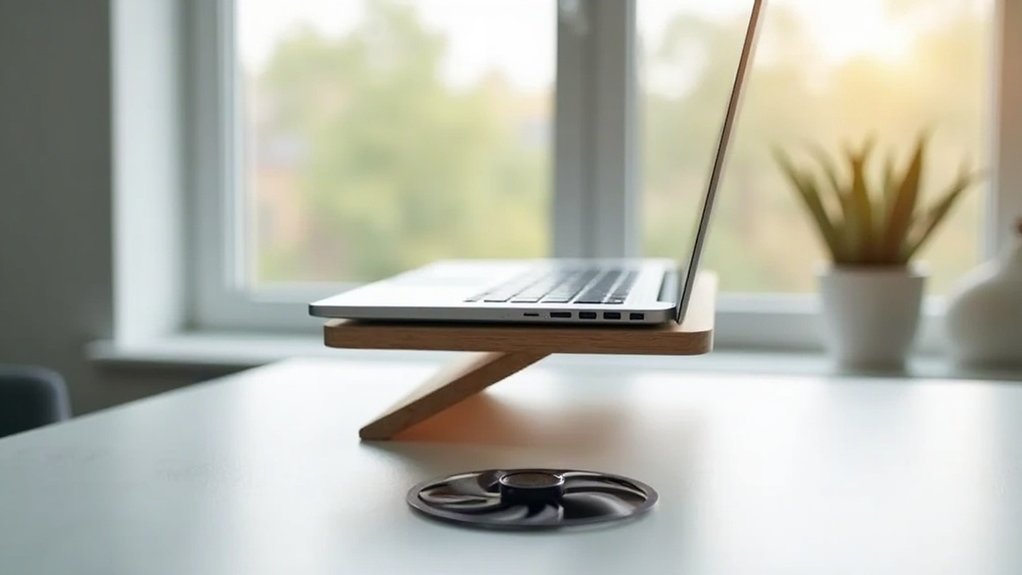
Elevated placement cools your laptop by improving airflow. When you lift your laptop, you create space for cooler air to enter and hot air to escape more easily. This prevents heat buildup, especially during intensive tasks. With better airflow dynamics, your laptop can maintain lower temperatures, potentially dropping by 6°C to 15°C. Using stands or elevating it slightly can greatly enhance its cooling performance. There’s more to discover about keeping your laptop cool and efficient.
Key Takeaways
- Elevated placement enhances airflow around the laptop, allowing cooler air to enter and hot air to escape more effectively.
- It prevents soft surfaces from blocking ventilation, which is crucial for optimal cooling performance.
- Elevation improves natural convection, promoting better heat dissipation during intensive tasks.
- Unobstructed vents reduce heat accumulation, leading to lower operating temperatures.
- Users can experience temperature drops of 6°C to 15°C with laptops positioned at an elevated height.
Understanding Laptop Overheating
Understanding laptop overheating is essential for maintaining your device’s performance and longevity. Laptops generate heat from the CPU and GPU, particularly during intensive tasks, often reaching higher temperatures than 90 degrees Celsius.
This excessive heat can slow down your system due to thermal throttling and degrade hardware over time. To guarantee effective cooling, prioritize better airflow by keeping vents and fans clean from dust and debris.
Regular maintenance helps optimize cooling efficiency, allowing your laptop to perform at its best. You should monitor temperatures closely, as prolonged heat exposure can lead to internal component failures and greatly shorten your laptop’s lifespan.
The Importance of Proper Placement
Maintaining your laptop’s performance hinges not just on monitoring temperatures but also on where you place it.
Proper placement is essential for your cooling system‘s effectiveness. Here’s what you should consider:
- Use solid, level surfaces to maximize airflow.
- Avoid soft surfaces like beds that block ventilation.
- Elevate your laptop slightly to enhance air circulation.
- Consider using laptop stands to improve vent positioning.
How Elevated Positions Improve Airflow
Elevating your laptop creates space between its underside and the surface, allowing cooler air to flow in and hot air to escape.
This improved airflow dynamics help reduce heat accumulation, which is especially important during intense gaming or heavy tasks.
Enhanced Airflow Dynamics
When you place your laptop in an elevated position, you create a gap between the device and the surface, which greatly improves airflow around its cooling vents.
This enhanced airflow is essential for keeping temperatures down. Here’s how elevating helps:
- Natural Convection: It promotes better heat dissipation through improved convection currents.
- Unobstructed Vents: Prevents blockage of air intake vents located on the bottom or sides.
- Effective Fan Operation: Allows internal fans to draw in cooler air more efficiently.
- Temperature Drops: Users report reductions of 6°C to 15°C, showcasing significant cooling benefits.
Reduced Heat Accumulation
Creating a gap between your laptop and the surface not only boosts airflow but also greatly cuts down on heat accumulation.
By elevating a laptop, you enhance circulation around the fans, allowing cooler air to flow in and hot air to escape. This simple adjustment can lead to a temperature reduction of 15 to 20 percent, especially vital for gaming laptops with vents underneath.
Improved airflow facilitates better heat dissipation, lowering GPU temperatures by up to 6°C during intense tasks.
Ultimately, this elevated position helps maintain ideal operating temperatures, ensuring effective cooling for your laptop’s internal components.
The Role of Laptop Fans in Cooling
Laptop fans play an important role in keeping your device cool and operational. They maintain cooling efficiency by exhausting warm air while drawing in cooler air.
Here are some key factors to take into account:
- Size and Speed: Larger, faster fans often provide better cooling but can be noisier.
- Malfunction Risks: Regular checks are crucial; malfunctioning fans can lead to overheating.
- Dust Accumulation: Dust accumulates on fan blades and vents, obstructing airflow and reducing cooling efficiency.
- Customization: Many laptops let you adjust fan speeds for best performance under high temperatures.
Keeping your fans in check guarantees your laptop stays cool and efficient.
Effective Maintenance for Optimal Performance
To keep your laptop running smoothly, regular cleaning is key.
Make it a habit to check your air vents and fans every 6 to 12 months, as dust can block airflow and lead to overheating.
Additionally, monitoring your laptop’s temperature can help you catch any cooling issues before they escalate.
Regular Cleaning Practices
Neglecting regular cleaning can lead to overheating and diminished performance in your laptop.
To maintain peak performance and lower temperatures, follow these cleaning practices:
- Clean air vents and laptop fans every 6 to 12 months, depending on usage.
- Use compressed air to blow out dust; hold fans in place to prevent damage.
- Utilize a soft brush for stubborn dirt that compressed air can’t reach.
- Consider an air purifier in your environment to reduce dust accumulation.
These steps help guarantee efficient airflow, preventing thermal issues and extending the longevity of your device.
Temperature Monitoring Techniques
Monitoring your laptop’s temperature is essential for ensuring peak performance and longevity. You should regularly check the temperatures of your CPU and GPU, especially during demanding tasks like gaming or rendering, as anything over 90 degrees Celsius can signal overheating.
Utilizing temperature monitoring techniques with software tools like HWMonitor or Core Temp gives you real-time readings, helping you spot trends. Establish a routine for these checks, particularly after cleaning or when using new cooling solutions.
Additionally, set alerts for high-temperature thresholds to protect your laptop’s fans and components, ensuring they run efficiently and last longer.
Recommended Cooling Solutions and Products
When it comes to keeping your laptop cool, investing in the right cooling solutions can make a noticeable difference.
Investing in effective cooling solutions is crucial for maintaining your laptop’s performance and longevity.
Here are some recommended products to enhance airflow and cooling efficiency:
- Cooling Pads: These provide additional fans and elevate your laptop on a solid surface for ideal ventilation.
- MOFT Laptop Stand: Attaches seamlessly, improving airflow while ensuring ergonomic comfort.
- MOFT Z Sit-Stand Laptop Desk: Customizable height and angle for stability and enhanced air circulation.
- Airflow Stands: Made from vegan leather and fiberglass, they effectively cool laptops with vents near their hinges.
Regular maintenance, like cleaning with compressed air, is essential too.
