
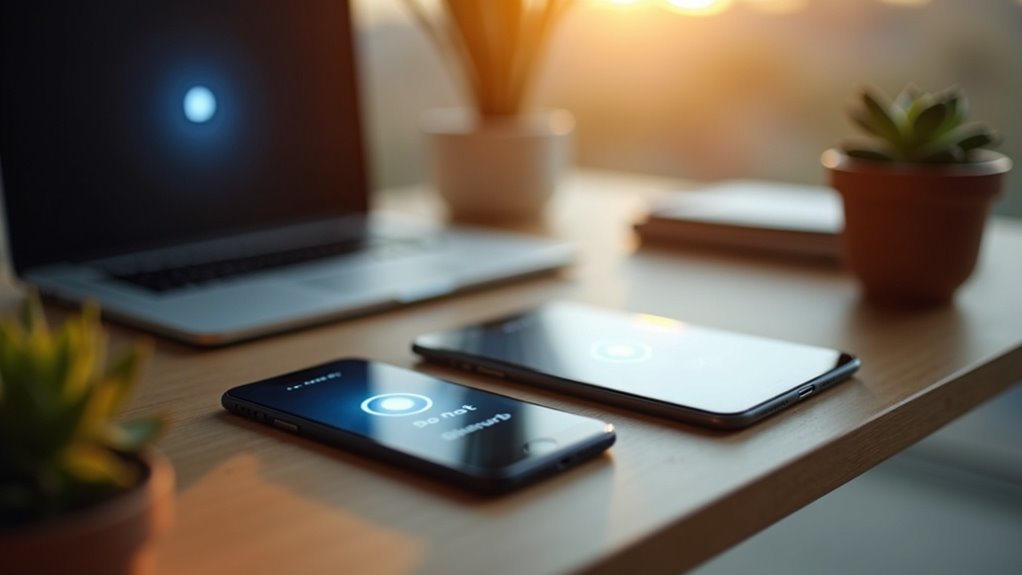
You can easily align Do Not Disturb (DND) modes across devices to enhance your focus. By enabling the “Share Across Devices” feature in your device settings, activating DND on one device automatically silences notifications on all connected devices. This minimizes interruptions and helps maintain boundaries in your professional and personal life. You can also customize your settings for specific contacts or apps. Explore further to discover more tips and strategies for effective DND management.
Key Takeaways
- Enable “Share Across Devices” in the Focus menu to sync DND settings across all connected devices using the same Apple ID.
- Activating DND on one device automatically silences notifications on all other devices linked to the same account.
- Customize DND settings individually by disabling “Share Across Devices” for tailored notification management on each device.
- Utilize Focus settings to selectively allow notifications from priority contacts or apps while in DND mode.
- Schedule automatic DND activation to maintain consistent interruption control across multiple devices during specific times.
Understanding Do Not Disturb Modes
Understanding Do Not Disturb modes can greatly enhance your focus and productivity. These modes silence notifications, letting you concentrate on tasks without disruptions.
With iOS 15’s Focus features, managing DND settings across devices can be convenient, but some users find it challenging. You can disable the “Share Across Devices” option in Settings > Focus to customize DND for individual devices. This lets you receive notifications on others while one device remains undisturbed.
Additionally, with iOS 18.1’s Intelligent Breakthrough, important notifications can bypass DND, ensuring you stay informed while maintaining your focus. Embrace DND to tailor your digital environment effectively!
Benefits of Syncing Across Devices
Syncing Do Not Disturb (DND) modes across your devices can greatly streamline your notification management. When you activate DND on one device, it automatically silences notifications on all connected devices, allowing you to focus better.
This seamless experience minimizes interruptions during tasks, enhancing your productivity. Plus, you can customize your Focus setting to let specific notifications through, ensuring you won’t miss important updates.
By sharing DND settings across devices, you maintain boundaries in both personal and professional environments without the hassle of adjusting each device individually.
Enjoy a unified DND experience that saves you time and effort.
How to Enable Share Across Devices
To enable the “Share Across Devices” feature for Do Not Disturb, start by accessing the Settings menu on your Apple device.
Make sure you’ve enabled the sync feature and are signed in with the same Apple ID on all your devices.
This way, you can manage your DND preferences consistently across your iPhone, iPad, and Mac.
Access Settings Menu
Have you ever wondered how to keep your Do Not Disturb settings consistent across all your Apple devices?
Start by opening the Settings app on your device. Next, navigate to the Focus menu.
Here, you’ll find the option labeled “Share Across Devices.” Toggle it on to guarantee your DND settings sync across all devices linked to the same Apple ID. This means when you activate DND on one device, it automatically activates on others, providing a seamless experience.
If you prefer more control, you can disable this feature to manage DND settings independently on each device.
Enable Sync Feature
Now that you know how to access the settings menu, enabling the Share Across Devices feature for Do Not Disturb is straightforward.
First, head to Settings > Focus on your iPhone or iPad. Make sure you’re signed into the same Apple ID across all devices you want to sync.
In the Focus menu, toggle on the “Share Across Devices” option. This allows DND settings to sync automatically, so activating DND on one device will trigger it on all connected devices.
If you’d rather manage DND settings individually, you can easily disable the Share Across Devices option in the same menu.
Manage Device Preferences
While managing device preferences for Do Not Disturb, enabling the “Share Across Devices” feature can streamline your notification settings.
To activate this, go to Settings > Focus on your Apple device and toggle the option on. Once enabled, when you activate DND on one device, it automatically activates on all signed in with the same Apple ID.
However, if you need different settings for specific tasks, you can turn off Share. This allows individual management of DND on each device.
Customizing Do Not Disturb Settings
Customizing your Do Not Disturb (DND) settings allows you to create a tailored notification experience across your devices.
By disabling the “Share Across Devices” option, you can manage each device’s DND features individually. In iOS 16 and later, you can even link custom Lock Screen wallpapers to your DND settings for a visual cue.
Selectively allow notifications from specific contacts or apps by adjusting the “Allow Notifications” option. You can also set schedules for automatic activation and utilize Focus Filters to modify app behaviors, ensuring your DND experience aligns perfectly with your personal preferences.
Managing Notifications During DND
When you’re using Do Not Disturb (DND), managing notifications becomes key to maintaining focus.
You can set individual device preferences, selectively allow app notifications, and even schedule DND for specific hours.
This customization helps you control interruptions, ensuring you only receive what’s truly important.
Individual Device Settings
Managing notifications during Do Not Disturb (DND) can markedly enhance your focus, and you have the power to tailor these settings for each device you use.
By disabling the “Share Across Devices” option in your Focus settings, you gain individual device settings that allow you to control notifications on iPhones, iPads, and Macs independently.
This means you can silence alerts on one device while still receiving notifications on another.
Customize your DND experience by allowing notifications from specific people or apps, ensuring you stay connected to important communications without distractions.
Take charge of your focus with these tailored settings!
Selective App Notifications
By selectively allowing notifications from specific apps during Do Not Disturb (DND) mode, you can guarantee that essential messages aren’t missed while still minimizing distractions.
Here’s how you can achieve effective selective notification management:
- Customize your DND settings under Focus > Do Not Disturb.
- Add important apps or contacts to the “Allow Notifications” list.
- Utilize custom filters in the Mail app for specific mailboxes.
- Enable the “Allow Repeated Calls” feature for urgent communications.
These steps help assure you stay connected to what matters most, while keeping interruptions at bay during your focused time.
Custom DND Scheduling
Custom DND scheduling lets you take control of your notifications by setting specific times for the feature to activate automatically. For instance, you can schedule DND from 11 PM to 8 AM, ensuring uninterrupted sleep or focused work.
Additionally, you can use location-based scheduling, activating DND during school hours or at work. The “Allow Repeated Calls” option allows important calls to bypass restrictions if the same person calls multiple times.
Troubleshooting Common DND Issues
Have you ever found that your Do Not Disturb (DND) settings aren’t syncing across your devices?
Here are some troubleshooting tips to help you resolve common issues:
- Make certain “Share Across Devices” is enabled in Settings > Focus on all devices using the same Apple ID.
- Check for software updates on all devices to keep them compatible with the latest Focus features in iOS 15.
- Toggle the DND feature on and off in the Control Center or Settings.
- Disable and re-enable the Focus feature if syncing problems persist.
If issues continue, consider reaching out to Apple Support Communities for more guidance.
Alternative Notification Management Strategies
While Do Not Disturb (DND) can be effective for silencing notifications, it’s not the only way to manage interruptions. You can manually adjust individual notification settings for various apps, allowing selective alerts during tasks. This helps you stay focused on important contacts while silencing distractions. Scheduling DND to align with your daily routine guarantees consistent interruption management. Additionally, the “Allow Notifications” feature within DND settings lets specific people or apps reach you even during DND periods.
| Strategy | Benefits | Considerations |
|---|---|---|
| Manual App Settings | Tailors alerts to needs | Requires effort |
| Scheduled DND | Consistent interruption control | May need adjustments |
| Allow Notifications | Priority contacts still reach | Limited to selected apps |
Future Development of DND Features
As you explore various strategies for managing notifications, it’s clear that the future of Do Not Disturb (DND) features is geared towards enhancing user control across devices.
With user feedback at the forefront, you can expect:
- Advanced syncing options for simultaneous DND activation
- Customizable settings for selective notification preferences
- DND status visibility in messaging apps for better communication
- Continuous updates addressing user concerns about functionality and complexity
These developments aim to improve your Focus by providing intuitive, user-centric designs that make managing notifications seamless and efficient.
Stay tuned for these exciting advancements in DND features!
