
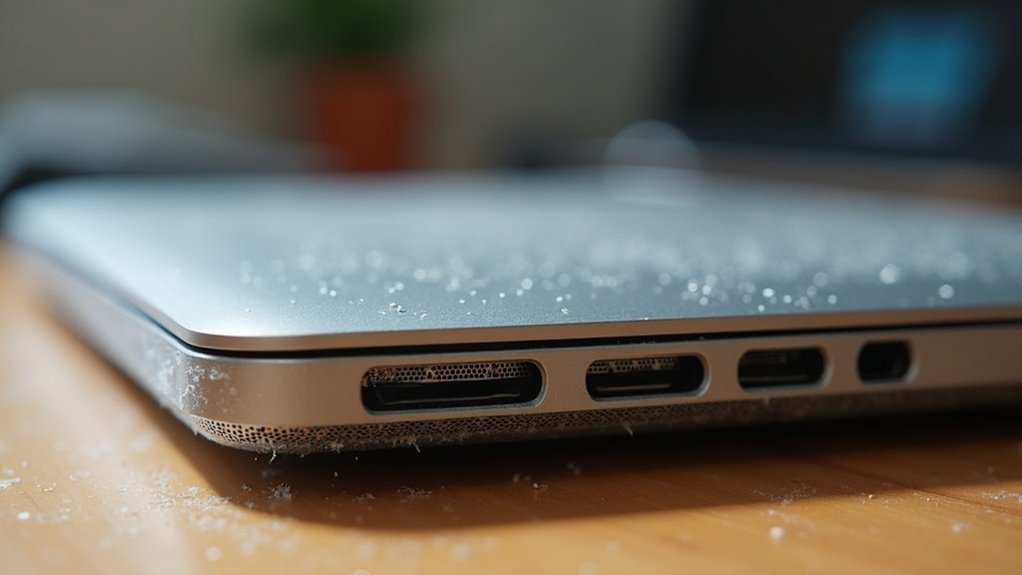
You need to regularly check both the exhaust and intake vents of your laptop. Exhaust vents, usually on the rear or sides, expel hot air, while intake vents, typically on the bottom or sides, draw in cool air. Dust accumulation can block airflow, leading to overheating and performance issues. Keep an eye out for signs like excessive heat or loud fan noises. Stay tuned for effective cleaning techniques and best practices to keep your laptop running smoothly.
Key Takeaways
- Regularly check exhaust vents, typically located on the rear or sides, to ensure hot air is expelled efficiently.
- Inspect intake vents, usually found on the bottom or sides, to confirm they are drawing in cool air without obstruction.
- Monitor for dust buildup around both types of vents to prevent airflow issues and overheating.
- Identify signs of clogging, such as excessive heat or loud fan noise, indicating the need for immediate inspection.
- Perform routine maintenance every 3-6 months to keep vents clean and maintain optimal laptop performance.
Importance of Laptop Vent Maintenance
When you neglect laptop vent maintenance, you risk overheating and reduced performance. Regularly checking your air vents is essential for preventing dust accumulation, which hinders airflow.
Cleaning the laptop fan and ensuring vents are obstruction-free maintain ideal cooling efficiency, protecting critical components like the CPU and GPU from heat damage. Blocked vents force fans to work harder, increasing noise and possibly shortening your laptop’s lifespan.
By committing to routine vent maintenance every 3-6 months, you enhance overall performance, keeping temperatures in check during demanding tasks like gaming or video editing.
Don’t let dust derail your laptop’s reliability—stay proactive!
Identifying Exhaust and Intake Vents
How can you make certain your laptop runs smoothly? Identifying your laptop’s exhaust and intake vents is essential for maintaining its cooling system. Here’s how to spot them:
- Exhaust vents: Typically located on the rear or sides, these expel hot air from internal components.
- Intake vents: Usually found on the bottom or sides, they draw in cool air to keep temperatures in check.
- Regular checks: Clean these vents every 3-6 months to prevent dust buildup, ensuring efficient airflow.
Monitoring these vents can help you detect blockages, protecting your laptop from overheating and potential hardware damage.
Signs of Clogged Vents and Overheating
If you notice your laptop feeling unusually hot or experiencing frequent shutdowns, these could be signs of clogged vents and overheating.
Dust and debris can obstruct airflow, causing internal temperatures to exceed 70°C (158°F) during normal use. You might also hear increased fan noise as it struggles to cool the system.
Erratic fan behavior and system slowdowns during demanding tasks like gaming or video editing are further indicators.
Regularly checking and cleaning your laptop’s vents every 3-6 months can help maintain proper airflow, ensuring your device runs efficiently and prolonging its lifespan.
Don’t ignore these critical signs!
Cleaning Techniques for Laptop Vents
To keep your laptop running smoothly, it’s essential to regularly clean its vents, as dust and debris can quickly accumulate and impede airflow.
Regularly cleaning your laptop’s vents is crucial to prevent dust buildup and maintain optimal airflow.
Here are some effective techniques to help you clean your laptop:
- Use a can of compressed air to blow out dust from the vents, applying short bursts.
- Inspect the intake and exhaust vents every 3-6 months to guarantee they’re free from dust and debris.
- If necessary, use a soft brush to gently clean around the vents without pushing debris further inside.
Best Practices for Vent Care and Prevention
Maintaining clean and unobstructed vents is essential for your laptop’s performance and longevity. Regularly inspect the air vents on the sides and bottom for dust or debris that can hinder airflow and lead to overheating.
Always use your laptop on a hard, flat surface to guarantee ideal ventilation. Every 3-6 months, use compressed air to clear out any accumulated dust, helping to prevent damage and maintain efficient cooling.
Pay attention to signs of airflow blockage, like excessive heat or loud fan noises, as these indicate your vents need immediate care to protect your laptop’s internal components.
