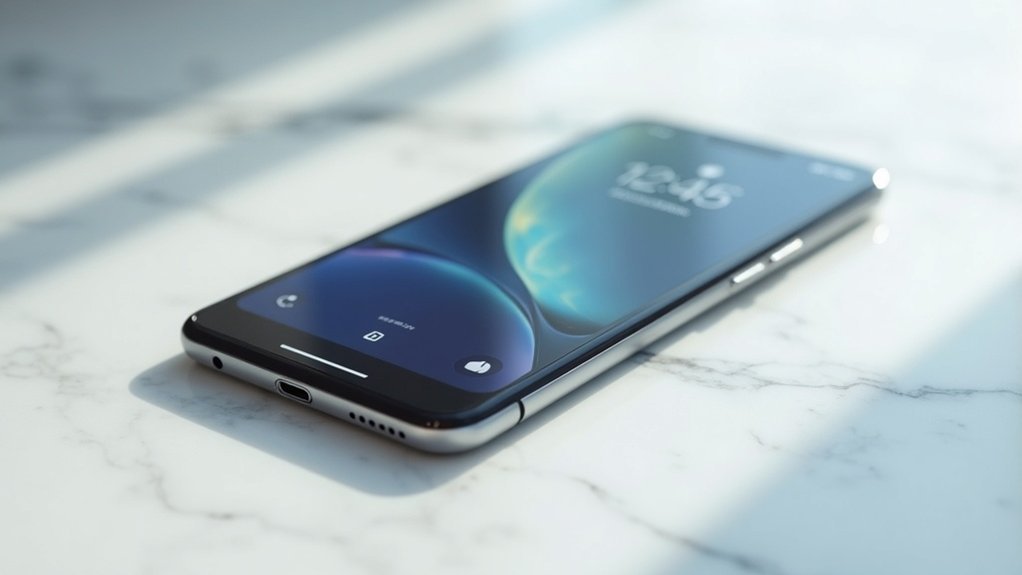
Lock screens display necessary status only to boost your security while giving you quick access to crucial notifications. By showing just essential updates, you can minimize distractions and maintain focus without compromising your privacy. Customization options let you control what’s visible, ensuring you stay connected while keeping sensitive information under wraps. This balance between accessibility and security enhances your overall experience. Want to know how you can customize your lock screen even further?
Key Takeaways
- Lock screens prioritize necessary status to enhance user security by limiting exposure of sensitive information.
- Displaying essential notifications allows quick access to important updates without unlocking the device.
- A minimalist approach reduces distractions, helping users focus on significant alerts and improving mental well-being.
- Customization options enable users to control which notifications appear, balancing accessibility and privacy.
- Limiting visible notifications fosters a more secure interface while still providing crucial information at a glance.
The Purpose of Lock Screens in Modern Devices
Lock screens play an essential role in modern devices, acting as your first line of defense for personal security. They require you to authenticate access, protecting your sensitive information.
Additionally, your lock screen provides quick access to essential notifications, like time, date, and alerts, so you stay informed without opening your device. You can personalize your lock screen by choosing which notifications appear, ensuring only the most relevant information is displayed.
With the option to host widgets, your lock screen can offer real-time updates, like weather or calendar events, while minimizing distractions and enhancing your overall user experience.
Enhancing User Convenience and Security
The convenience and security of your device hinge on a well-designed lock screen. By prioritizing necessary status information, you can quickly access crucial updates while keeping your data safe.
Here’s how enhancing user convenience works:
- Control notifications on the lock screen to show only essential updates.
- Choose one app to display detailed status, reducing clutter.
- Highlight your favorite apps for quick access, streamlining your experience.
With customizable settings, you maintain a secure interface, ensuring only authorized users can access sensitive information while still receiving important updates at a glance.
Enjoy the balance of functionality and security!
Reducing Distractions Through Minimalism
While traversing today’s fast-paced digital landscape, minimizing distractions becomes essential for maintaining focus and productivity.
By customizing your lock screen, you can choose which apps to show status on the lock, allowing only significant alerts like messages or reminders. This minimalist approach reduces cognitive load, helping you process information more efficiently.
When you simply turn on necessary notifications, you enhance your ability to concentrate, improving your overall mental well-being, especially in work or study environments.
Balancing Accessibility and Privacy
In a world where staying connected is essential, balancing accessibility with privacy on your lock screen becomes increasingly important.
You want quick access to crucial information without exposing sensitive content. Here’s how you can achieve that balance:
- Limit visible notifications to maintain privacy.
- Use customization options to choose which app statuses appear.
- Adjust “Show Previews” settings for controlled detail on your lock screen.
Customization Options for User Preferences
Customizing your lock screen is a great way to enhance your device experience while keeping it personal and practical.
You can access customization options by going to Settings > Personalization > Lock screen. Choose an app to display detailed status updates and select additional apps for quick access. If you prefer fewer distractions, set the lock screen status to “None.”
Consider using Windows Spotlight or a slideshow for dynamic backgrounds. Manage how notifications appear by adjusting settings to Count, Stack, or List.
Adding widgets allows for quick access to information like weather updates without opening your device. Enjoy your personalized experience!
