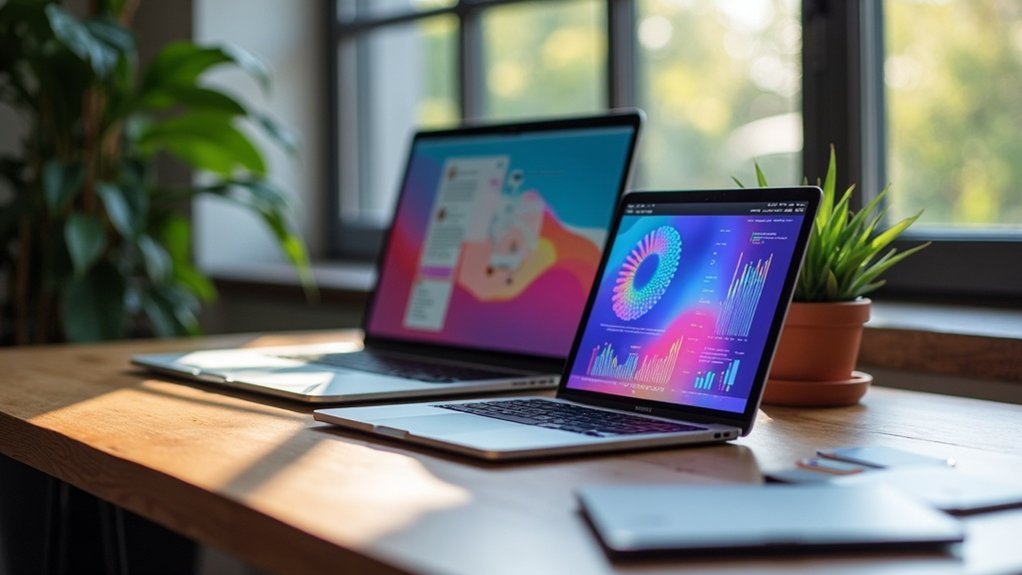
Sidecar lets you extend your workspace by using your iPad as a second display for your Mac. You can drag windows seamlessly between the two, boosting your productivity. With features like Touch Bar controls and Apple Pencil support, you’ll have quick access to essential functions and can even draw directly on your iPad. Plus, you can customize your sidebar for a personalized setup. Want to know how to get started and optimize your experience? There’s more to explore!
Key Takeaways
- Sidecar allows your iPad to function as a secondary display, extending your Mac’s screen real estate for enhanced productivity.
- Multitask seamlessly by dragging windows between your Mac and iPad, maximizing workspace efficiency.
- Utilize the Touch Bar on your iPad for quick access to tools and functions, even if your Mac doesn’t have a physical Touch Bar.
- The Apple Pencil enables precise drawing and interaction on the iPad, ideal for creative tasks or annotating documents.
- Customizable sidebar on the iPad provides essential controls, making it easier to manage tasks and applications across both devices.
System Requirements for Sidecar
To use Sidecar effectively, you’ll need to confirm your devices meet specific system requirements.
Your Mac must be a 2016 model or later, running macOS Catalina or newer. Supported iPads include all iPad Pro models and those from the 6th generation or later.
Your Mac should be a 2016 model or newer, with iPads from the 6th generation or any iPad Pro supported.
Ascertain both devices are signed into the same Apple ID with two-factor authentication enabled.
For peak performance, connect via USB-C, though Wi-Fi and Bluetooth should be active for wireless use, keeping devices within 10 meters.
This setup transforms your iPad into an extension of your Mac, enhancing your productivity and workspace versatility.
Setting Up Sidecar on Your Devices
Setting up Sidecar on your devices is a straightforward process that can greatly enhance your productivity.
To get started, follow these steps:
- Verify both your Mac and iPad are signed into the same Apple ID.
- Enable Bluetooth and Wi-Fi on both devices.
- For macOS Ventura, go to Settings > Displays, click the “+” button, and select your iPad.
- For earlier versions, use System Preferences to choose your iPad as a secondary display.
Don’t forget to enable Handoff on both devices to boost connectivity.
With these steps, you’ll enjoy a seamless Sidecar experience!
Extending Your Screen With Sidecar
Once you’ve set up Sidecar, you can easily extend your Mac’s desktop to your iPad, giving you extra screen space that boosts your productivity.
By selecting your iPad through the Screen Mirroring icon on your Mac’s Menu Bar, you can transform it into a secondary display. This setup supports multitasking, allowing you to drag windows seamlessly between devices.
Use the Touch Bar controls for quick access to functions, and leverage the Apple Pencil for drawing or interaction.
Adjust the sidebar position on your iPad for even more efficient workflow, creating a personalized workspace that meets your unique needs.
Using Gestures and the Sidebar
How can you enhance your productivity while using Sidecar on your iPad? By leveraging gestures and the Sidebar, you can streamline your workflow.
The Sidebar provides quick access to essential controls like the Command key, Option key, and Control. Use multi-touch gestures to navigate effortlessly:
- Swipe with two fingers to scroll through documents
- Pinch with three fingers to copy, cut, or paste
- Tap to show or hide the menu bar and Dock
- Access Touch Bar controls even if your Mac doesn’t have one
With these tools, your iPad as a second display becomes an efficient workspace in macOS Big Sur.
Customizing Your Experience With Apple Pencil and Touch Bar
Customizing your experience with the Apple Pencil and Touch Bar can greatly enhance your workflow when using Sidecar on your iPad.
The Apple Pencil allows you to perform advanced gestures, like a three-finger pinch to copy, cut, or paste, boosting productivity. You can enable the “Double-tap on Apple Pencil” feature through System Preferences on your Mac for customizable actions in compatible Mac applications.
The Apple Pencil’s advanced gestures and customizable double-tap feature significantly enhance productivity in compatible Mac applications.
The Touch Bar adapts to your current app, providing relevant controls.
Don’t forget to adjust the sidebar’s position and access modifier keys easily with your Apple Pencil, optimizing your workspace for efficiency and ease of use.
Troubleshooting Common Connectivity Issues
Using Sidecar with your iPad can greatly enhance your creative tasks, but sometimes connectivity issues can arise. To guarantee smooth operation, follow these tips:
- Keep both Mac and iPad on updated operating systems.
- Make sure both devices are signed into the same Apple ID.
- Enable Bluetooth, Wi-Fi, and Handoff on both devices.
- If screens freeze, switch to a wired USB connection.
Additionally, adjust the automatic screen lock settings on your iPad and restart the Mac periodically to optimize performance.
Addressing these common issues can help you enjoy a seamless Sidecar experience!